To install the WebSync extension in the Microsoft Dynamics Business Central 365 you need to start by registering a new app in the Microsoft Azure Active Directory.
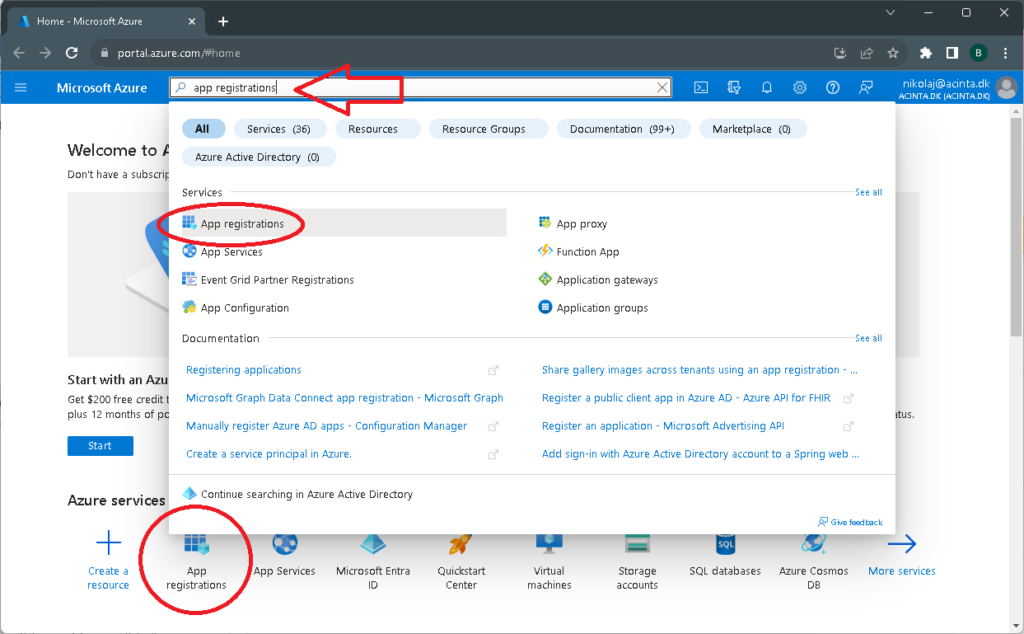
Log into your Azure account and proceed to “App registrations”. You find it on the start page or using search as shown below.
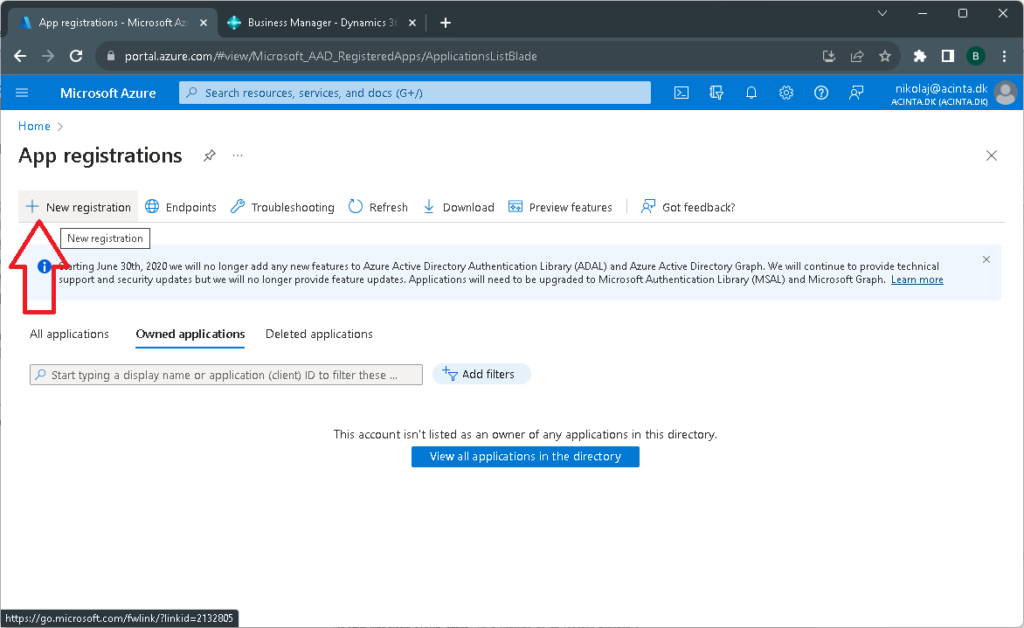
After you opened the “App registrations” you need to create a new registration.
It will be used by the WebSync service for accessing Business Central data.
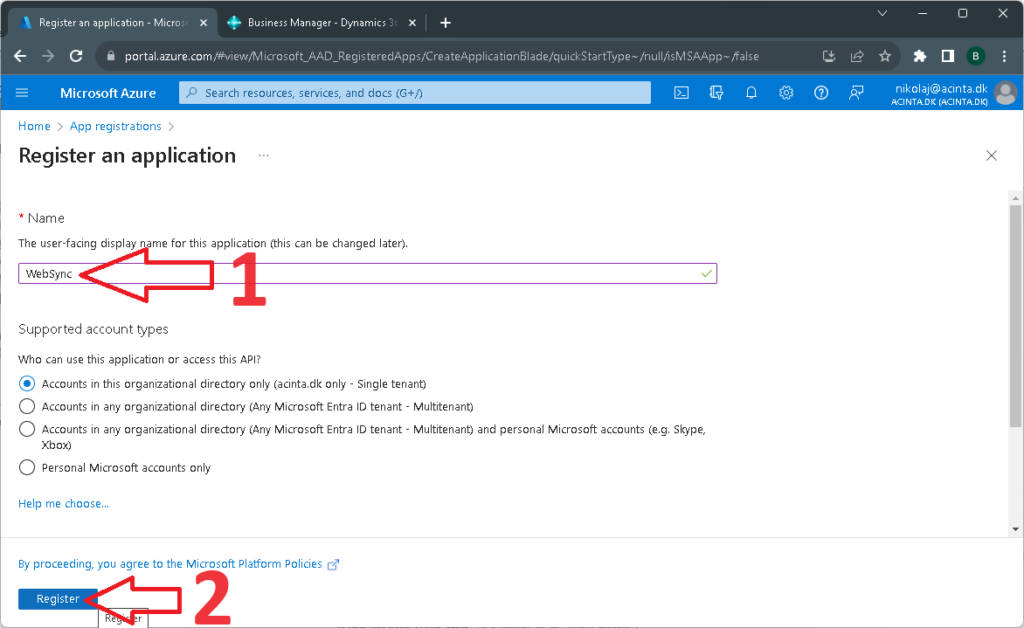
Type “WebSync” or other telling name and click “Register”.
Change supported account type only if you need special settings for the accounts.
Click “Register” to complete registration and edit its properties.
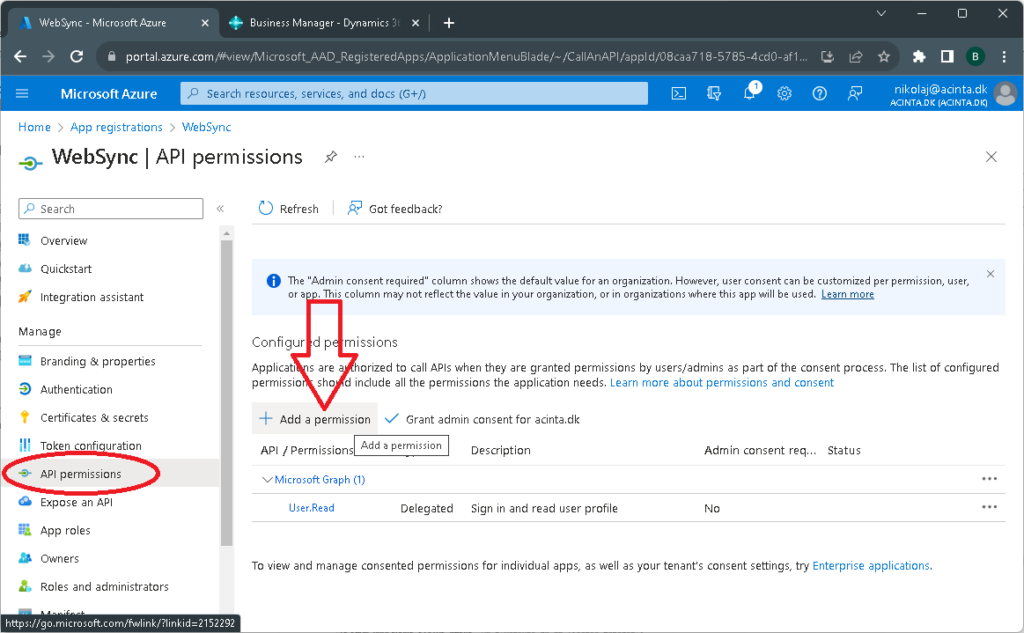
Click “API permissions” section in the left panel.
Click “Add a permission” button in the opened section.
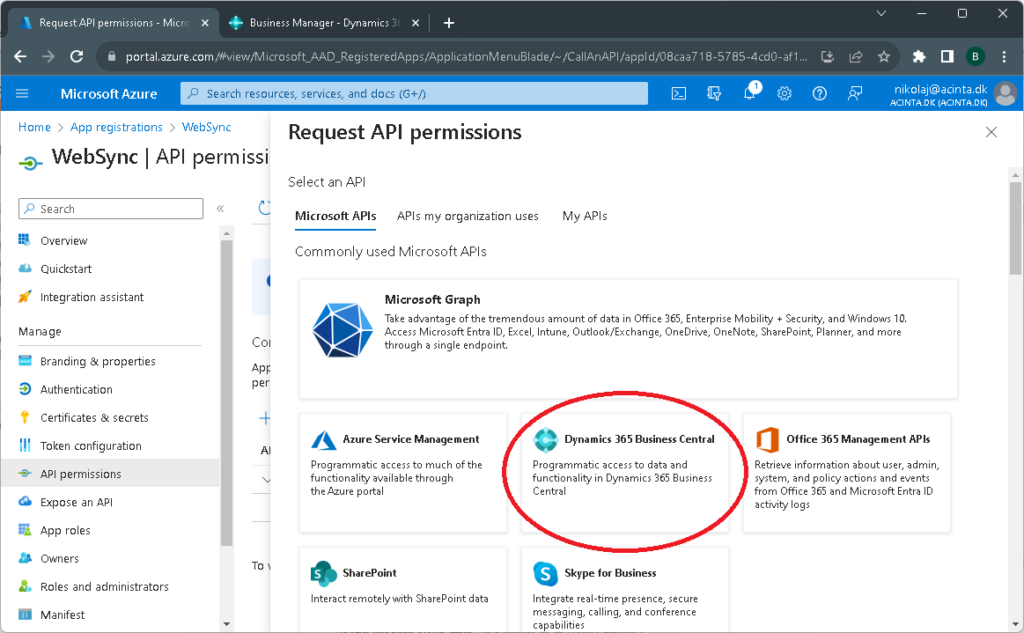
Choose “Dynamics 365 Business Central API” in the popup window.
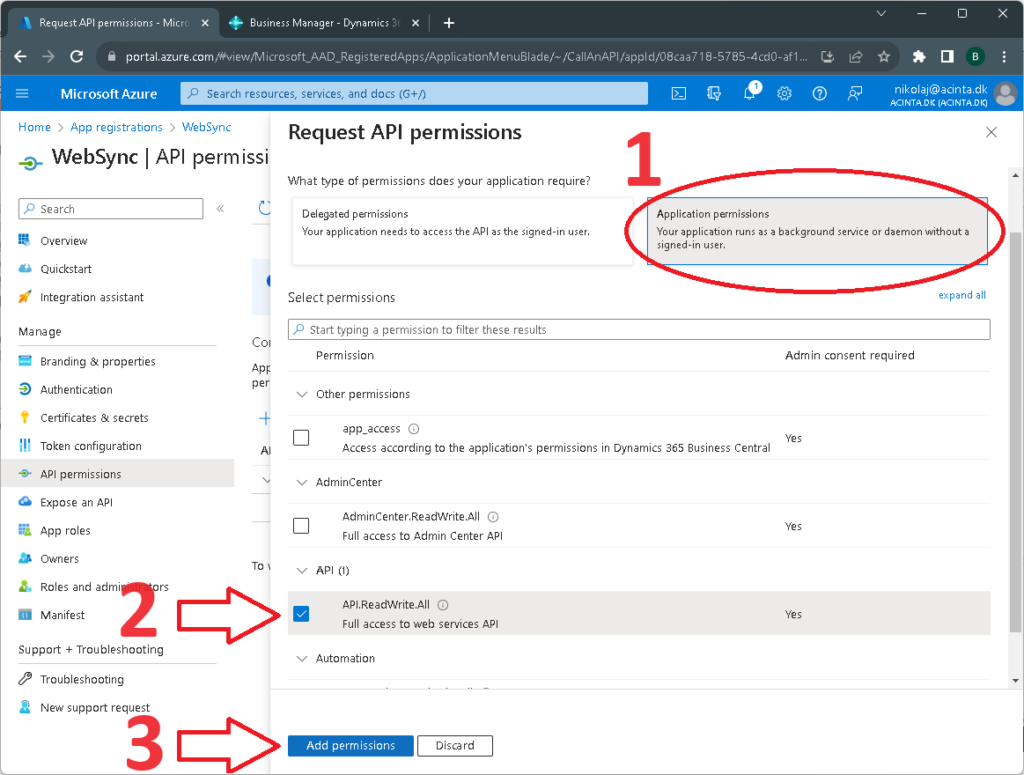
Select “Application permissions” option.
In list of the permissions check the “API.ReadWrite.All” permission to allow WebSync access Business Central data.
Click “Add permissions” to approve new permissions.
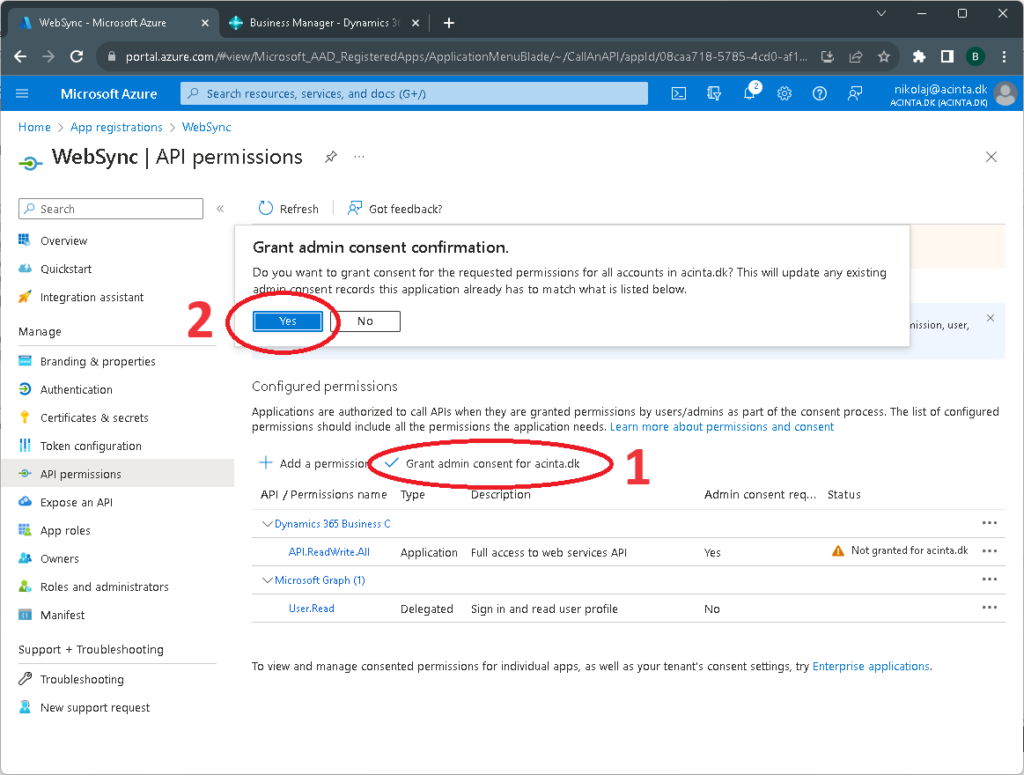
Now permissions are added to the application, but also you need to grant them to make it work.
Click “Grant admin consent for <your account>” and confirm it in the popup window.
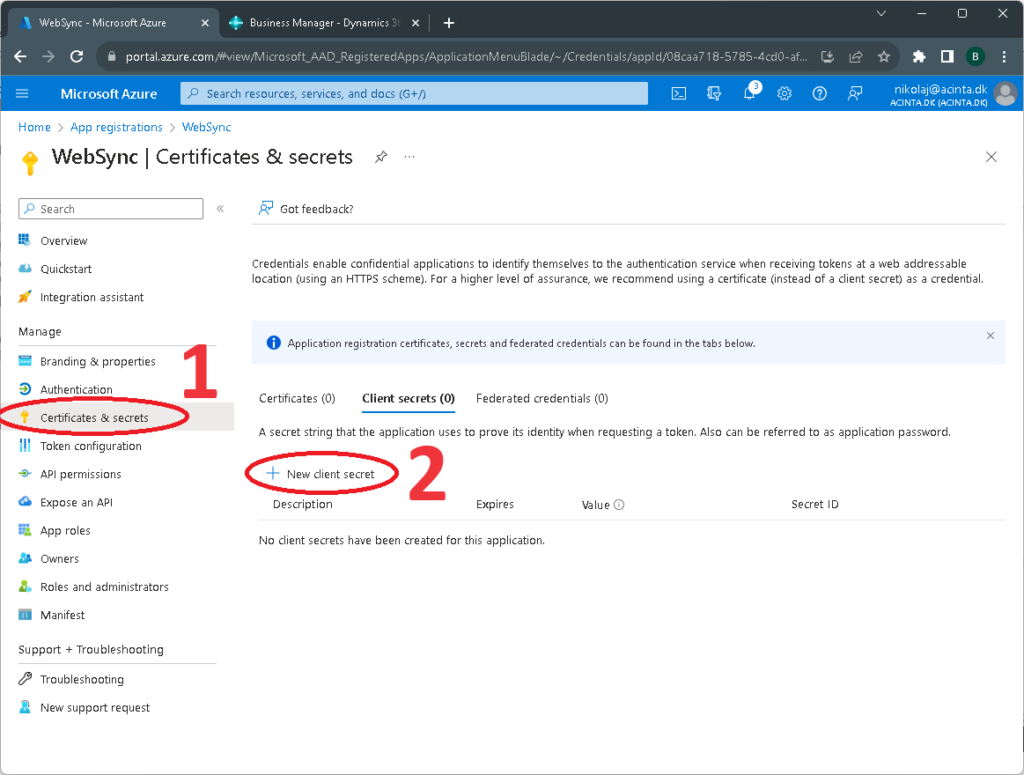
Now create a client secret for the application; It’s similar to a user password:
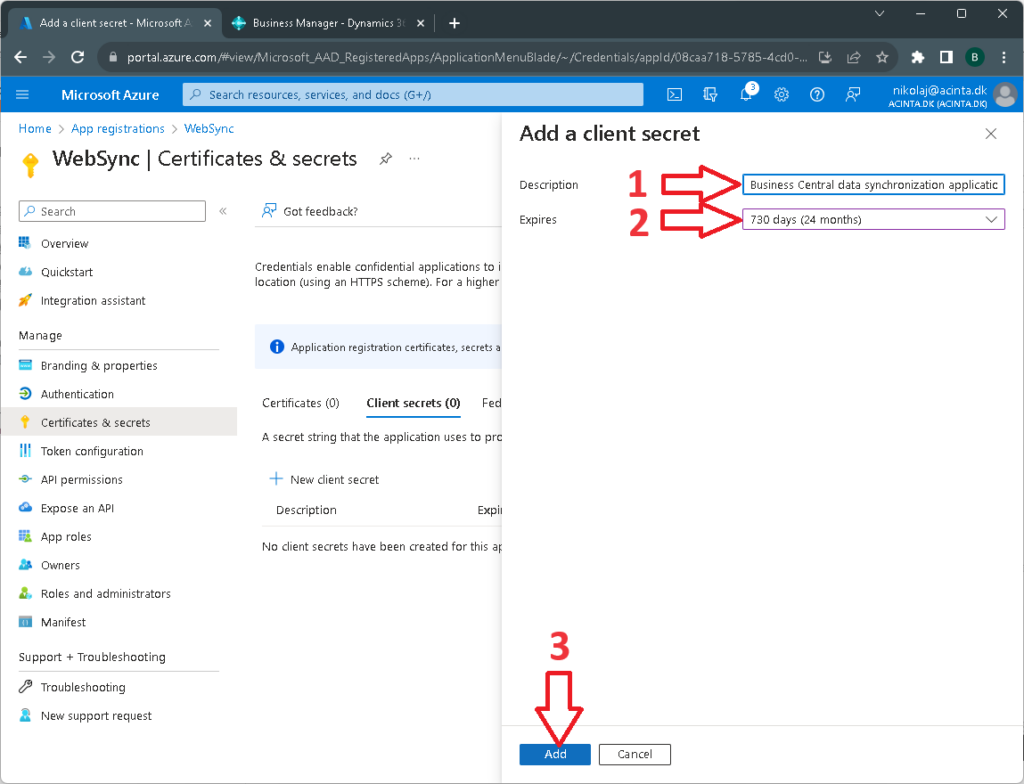
Select “Certificates & secrets” section in the left panel and click “New client secret”.
In the popup dialog enter a description of the secret and expiration date.
A good description helps you remember whom you gave the secret and for which purpose.
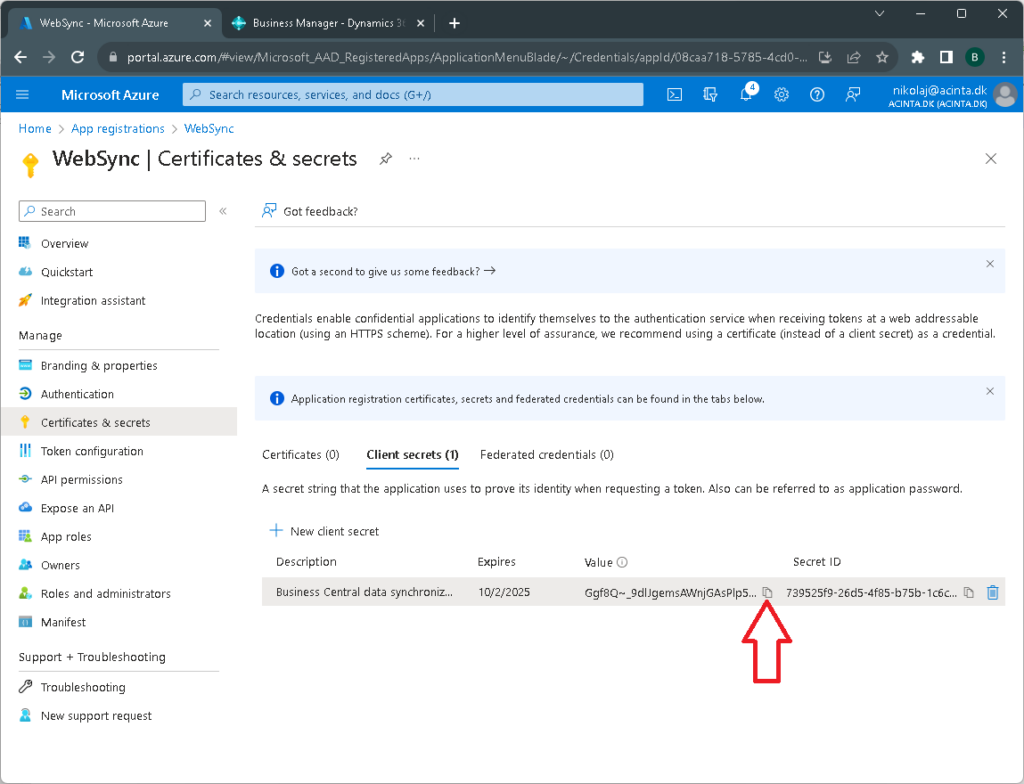
After you created the new client secret you need to copy and save it somewhere safe. Only give it to people who are setting up access for the WebSync application.
The client secret is required by WebSync to connect to Business Central.
Note that you can’t copy or see the client secret value after you log out of Azure. It’s only visible right after you create it.
If you lose the client secret you need to create a new one. Remember to update connection configuration if you created new client secret and old one is deleted or expired.
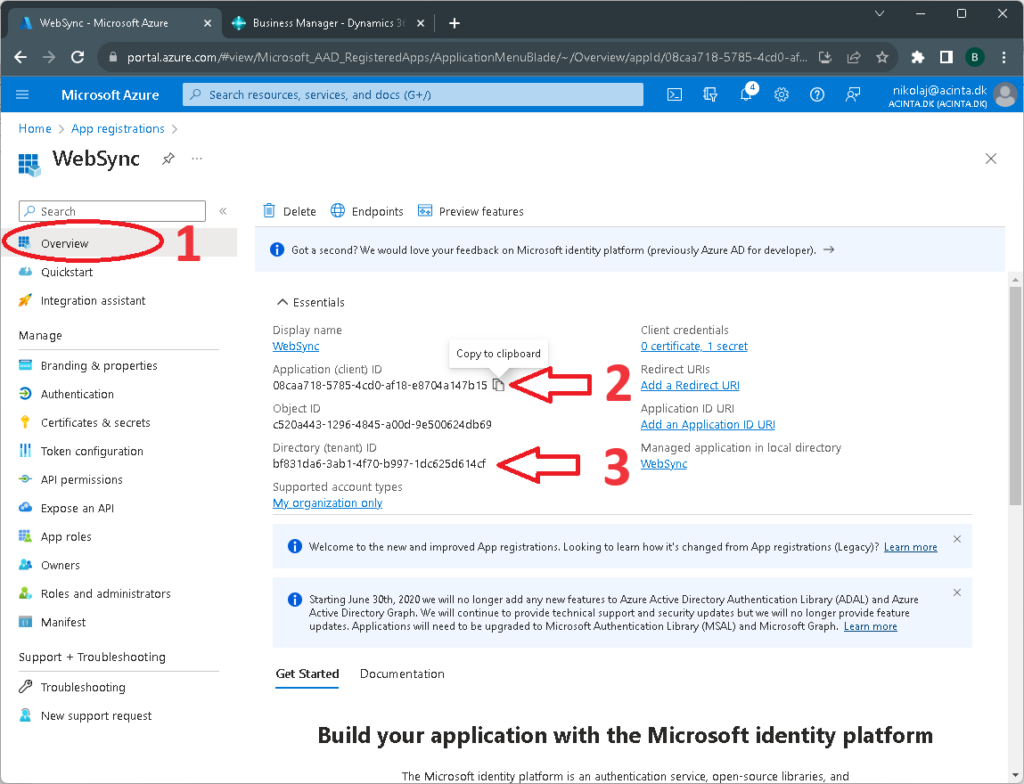
Next, get the client ID and tenant ID. These parameters are also required by WebSync.
To get them select “Overview” section in the left side and copy them using selection or popup button which is copying values to the clipboard.
It is a good idea to mark them because they look similar and it is easy to confuse which is which. But unlike client secret value from previous step you can always look up those values later in Azure portal on the WebSync application page.
Now you need to set up the application, you just created, in the Dynamics 365 Business Central.
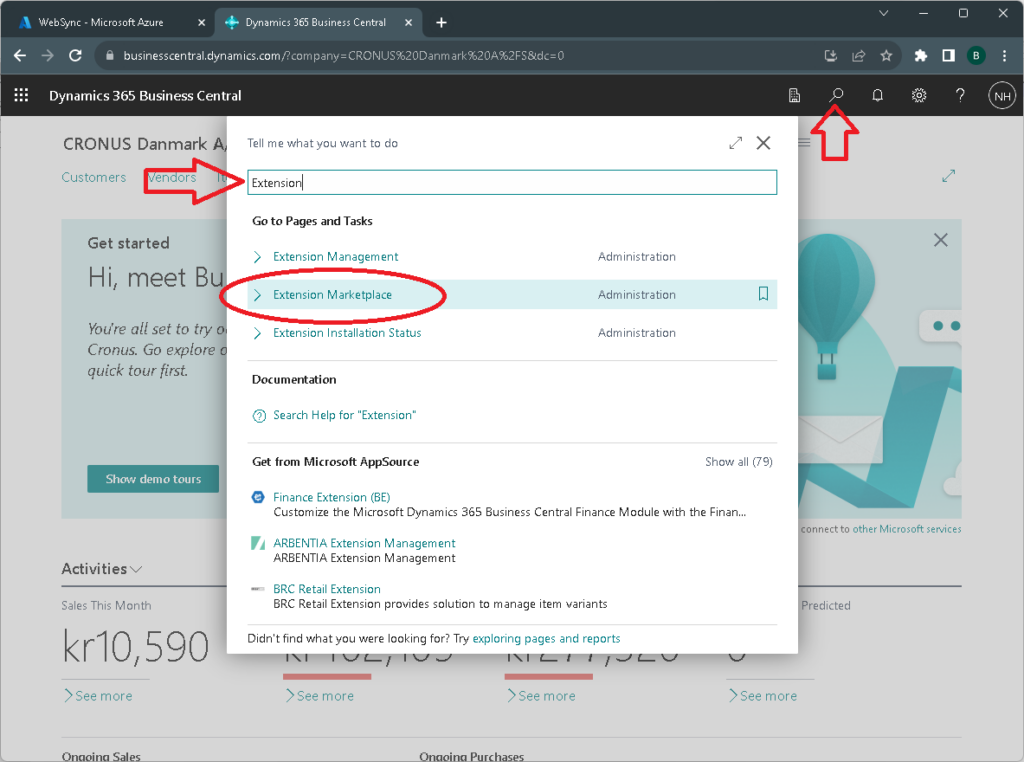
Click “Search” (looking glass icon in the top) and type “extension”
Click “Extension Marketplace”.
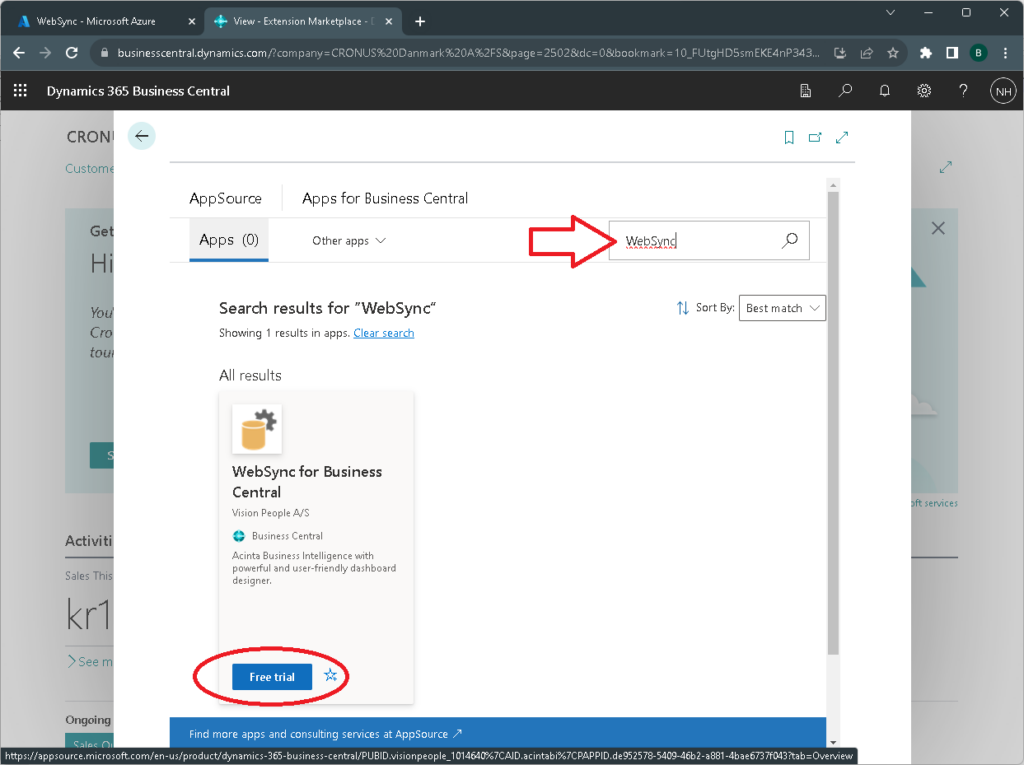
In the extension marketplace find “WebSync for Business Central” extension and click “Free trial”.
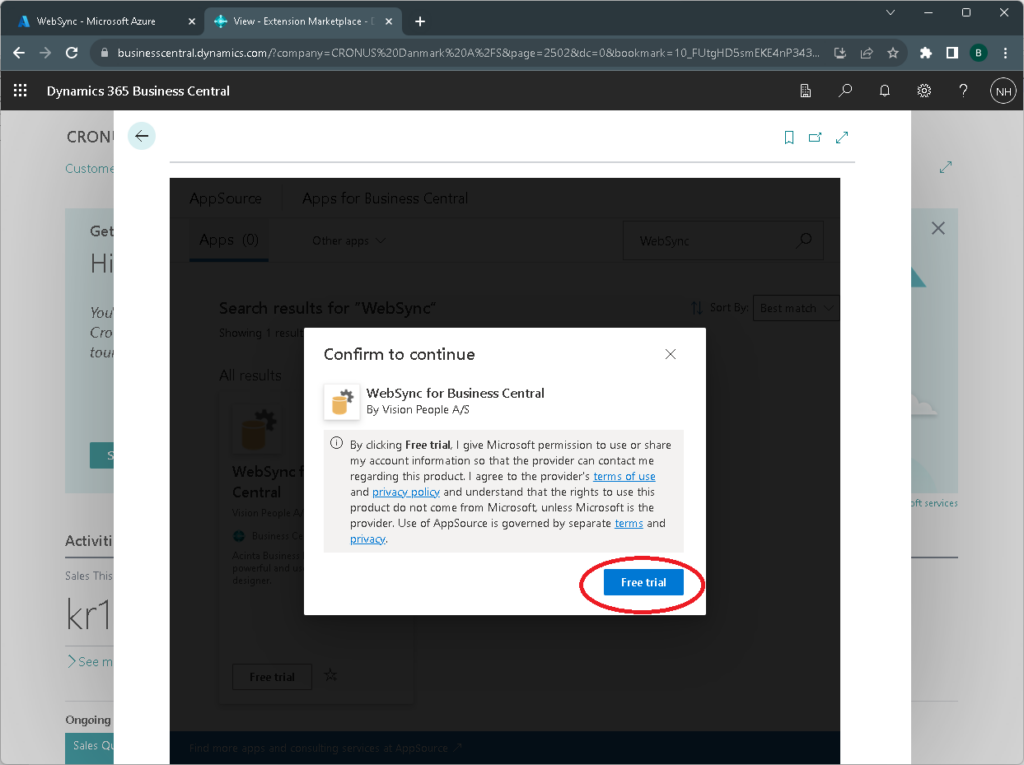
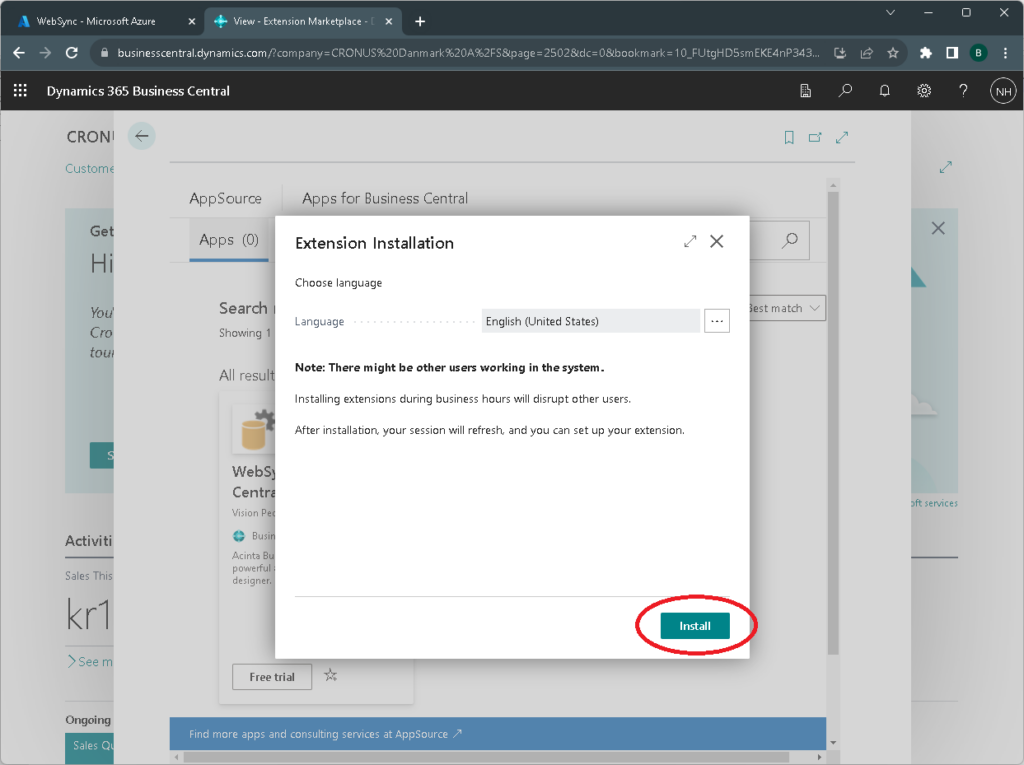
There will be two pop-up installation confirmation dialogs.
Installation of the extension can take a minute or two.
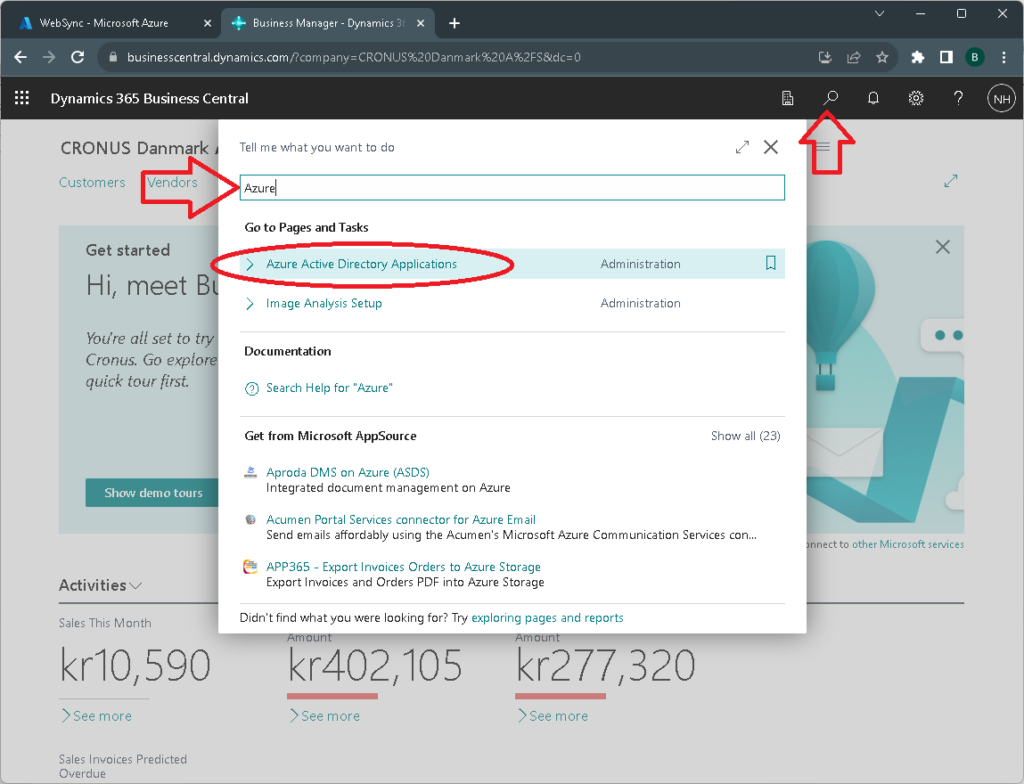
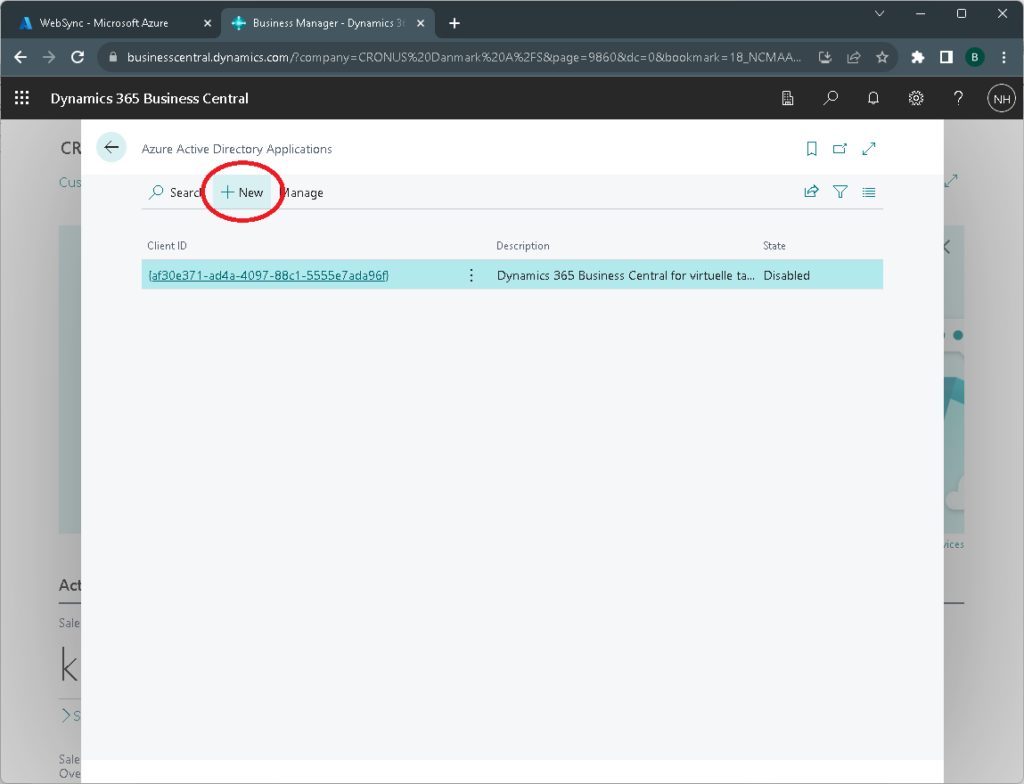
Next, open “Azure Active Directory Applications” page to bind the Azure application to Business Central. Type “Azure” in the search box and click “Azure Active Directory Applications”.
Click “New” to create a new application card.
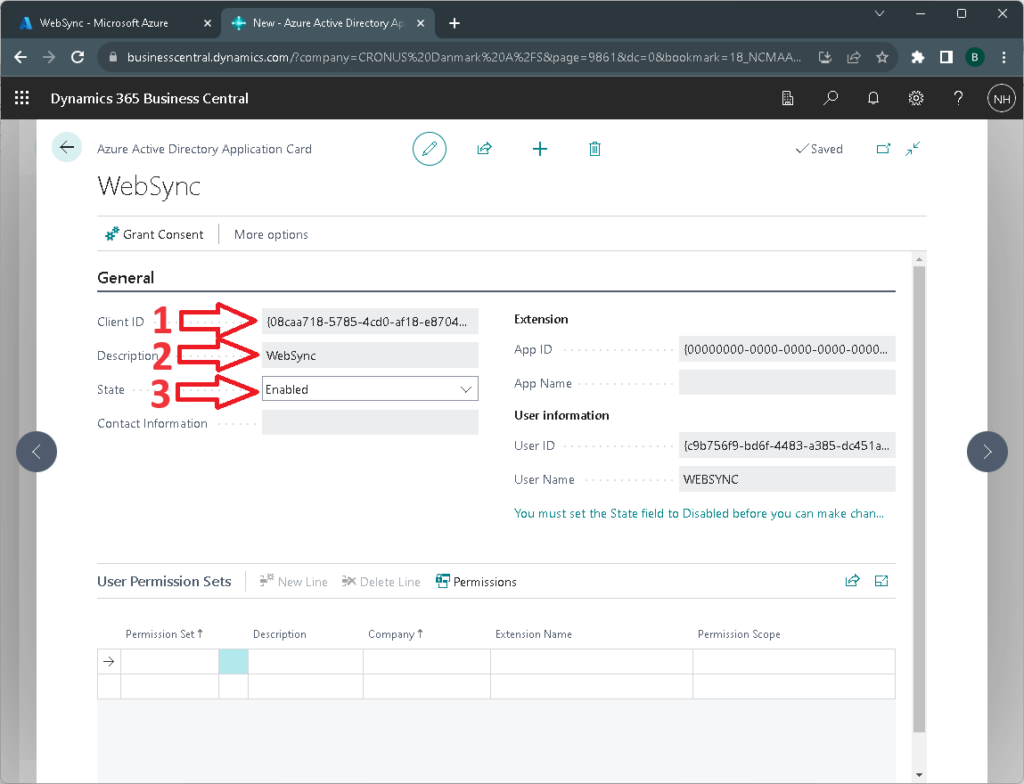
In the new application card:
Input client ID, you had stored, when registering new app in the Azure portal.
Enter application description
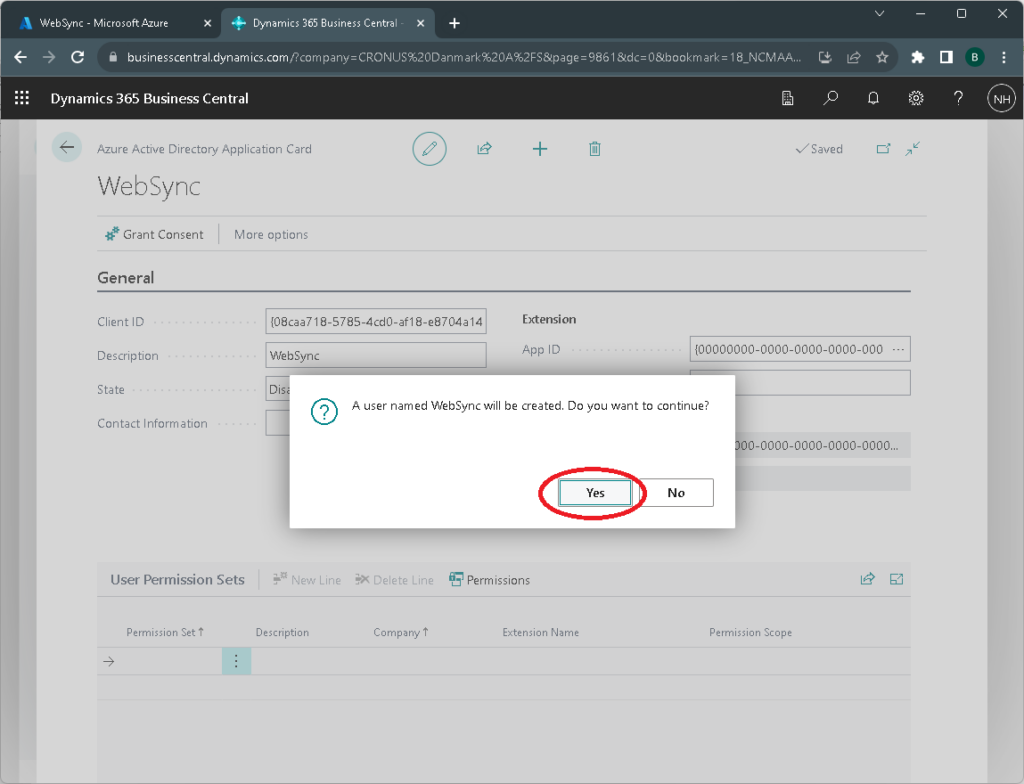
Enable the application.
In the confirmation dialog, click “Yes”.
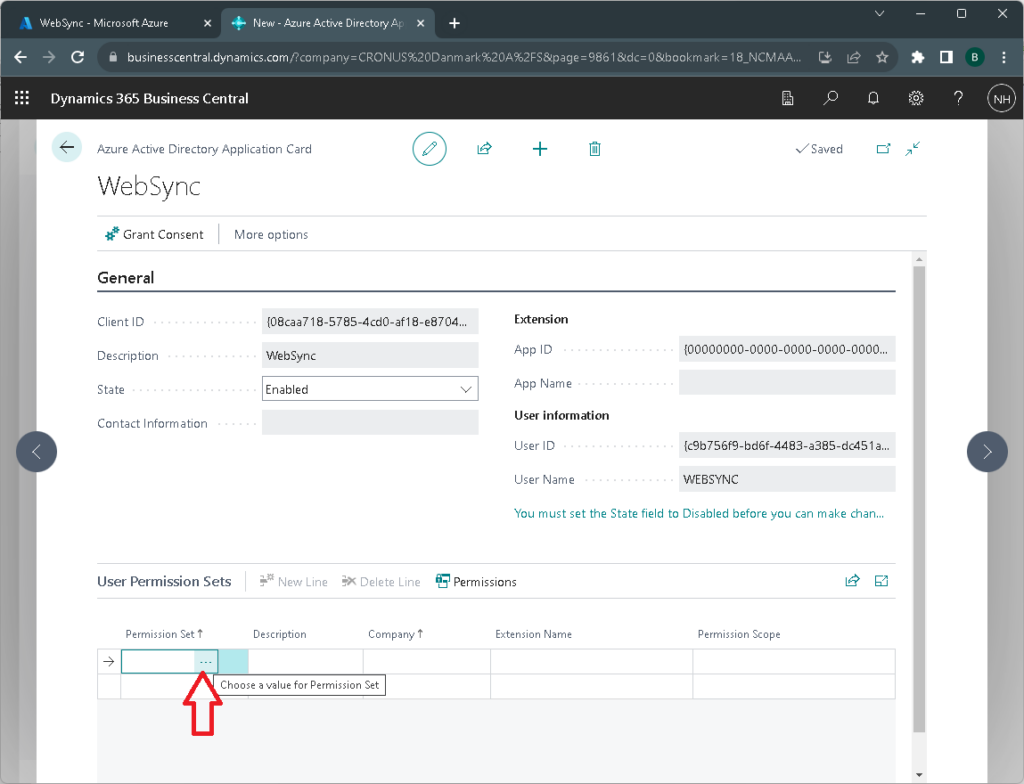
Add permissions:
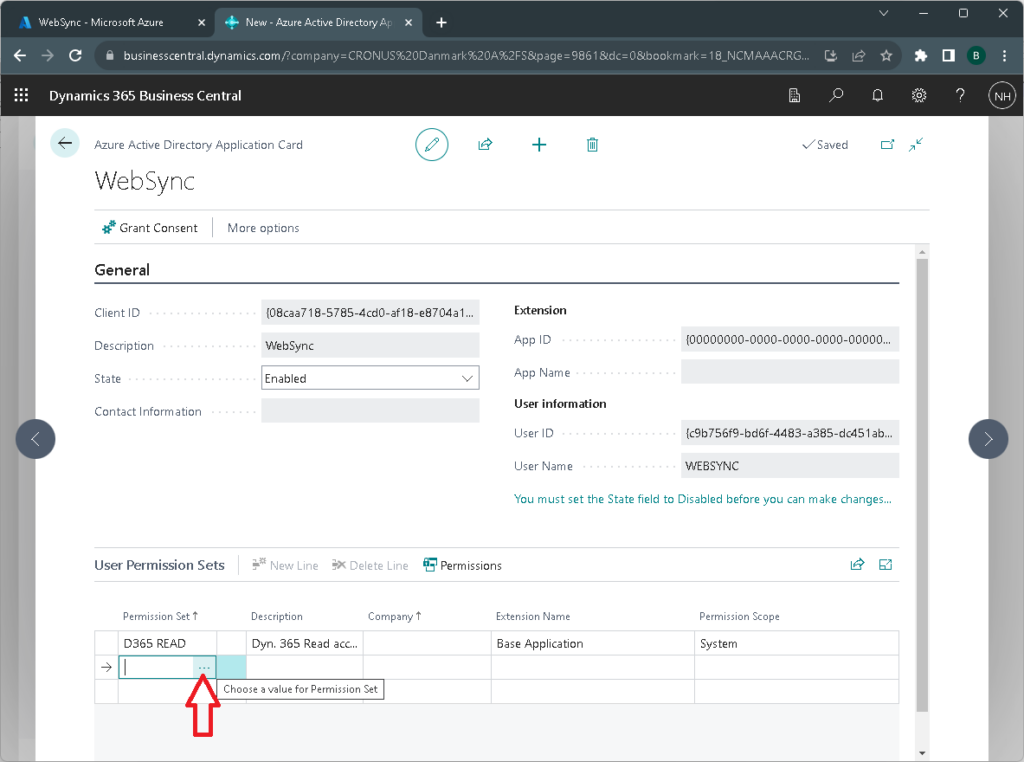
Click on the button with three horizontal dots near empty field in the “Permissions set” column in the “User Permissions Sets” grid.
Allow the “WebSync” application that we just defined in Azure to read from all Business Central user tables:
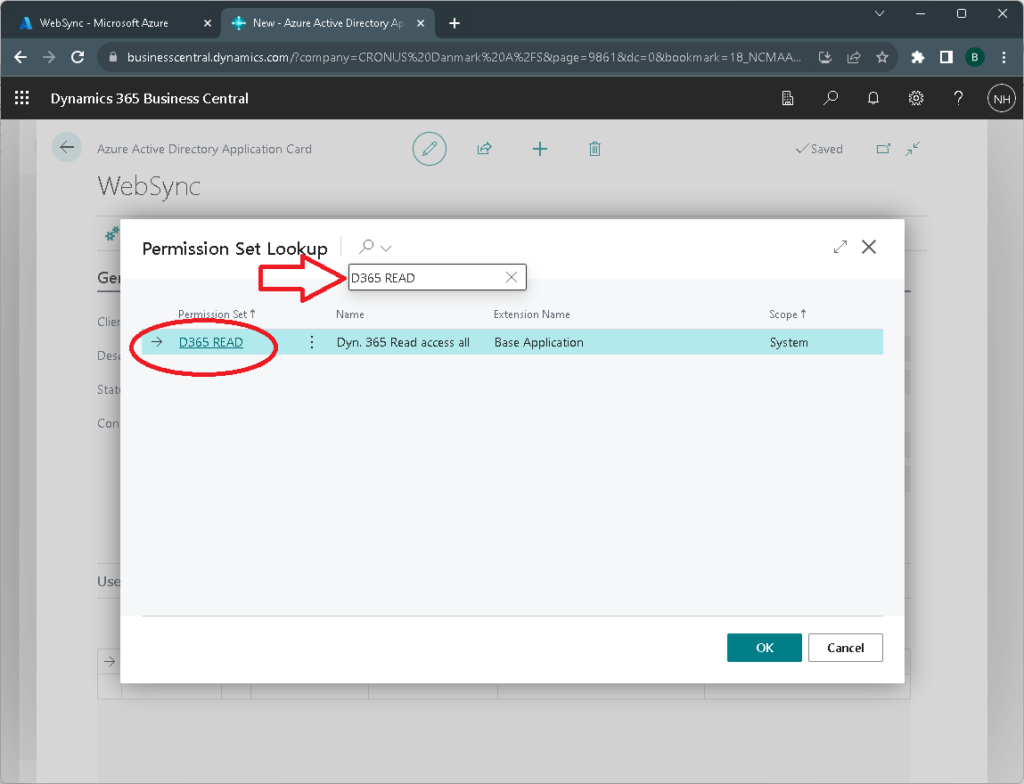
Type “D365 READ” in the search box
Click “D365 READ” in the “Permission Set” column
Allow the Azure application to access the “WebSync for Business Central” extension:
Navigate to the empty line below the ‘D365 READ’ permission set in the ‘User Permission Sets’ grid, and click the button with three dots near the empty field.
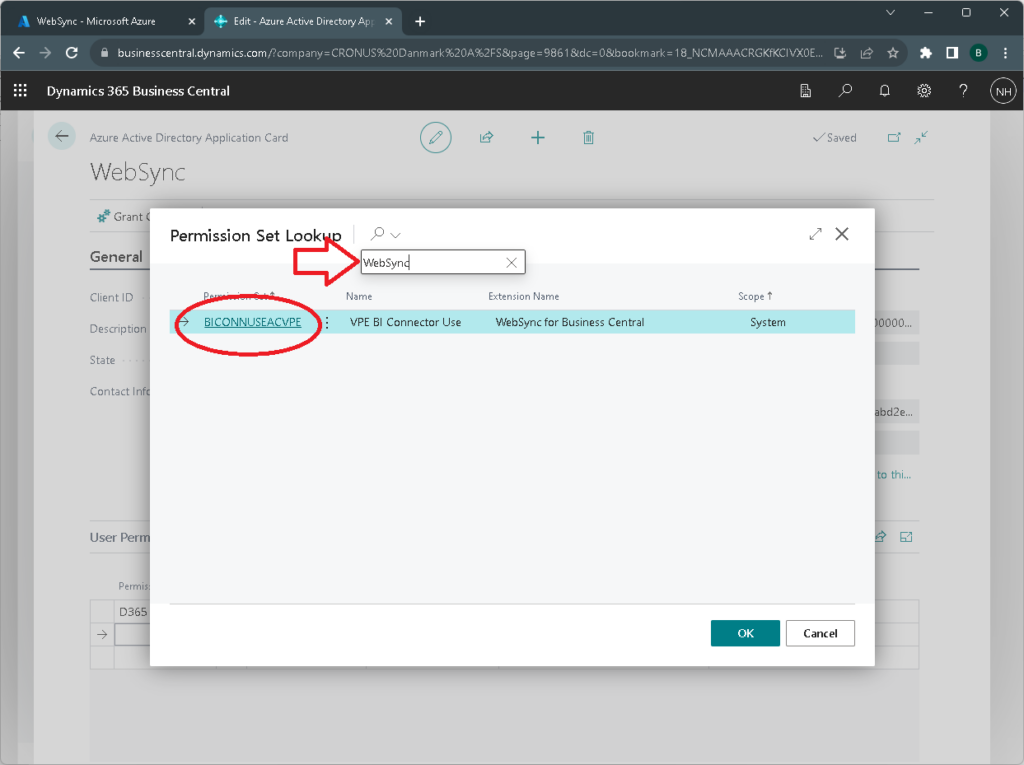
In the new dialog, find the “WebSync for Business Central” permission and click on it’s name in the “Permission Set” column to add it.
This completes the Business Central application card setup.
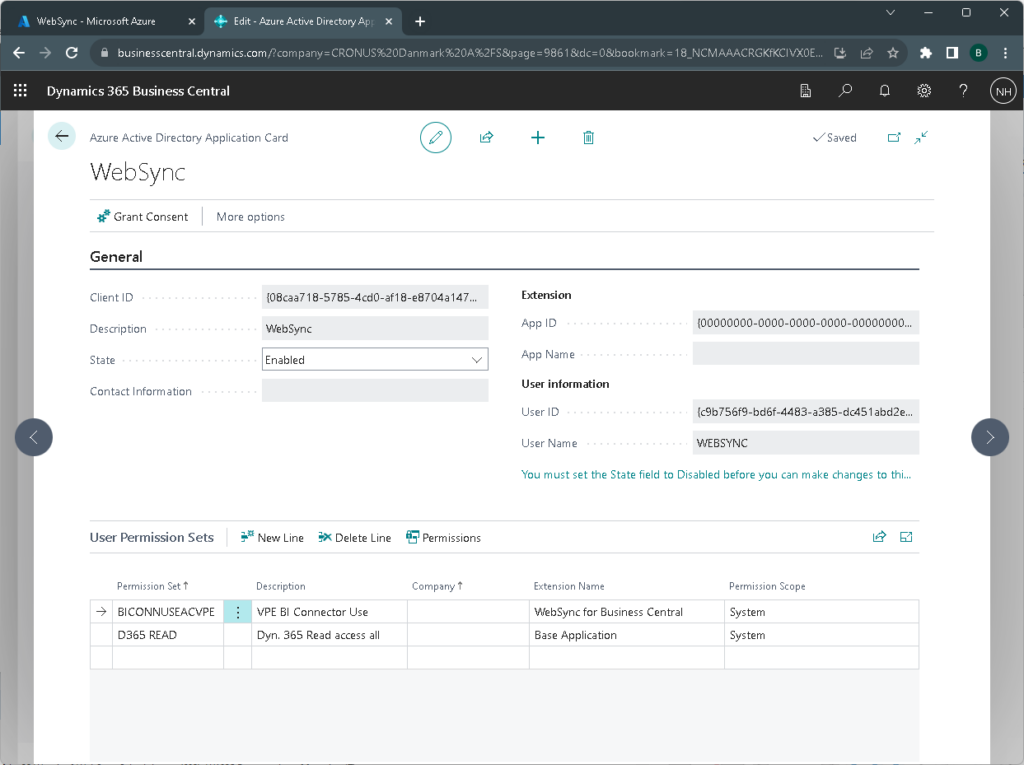
Below example shows a correctly configured application card:
“State” is Enabled
Permission to read all tables
Access allowed for extension “WebSync for Business central”
Configure companies from which to synchronize/read data:
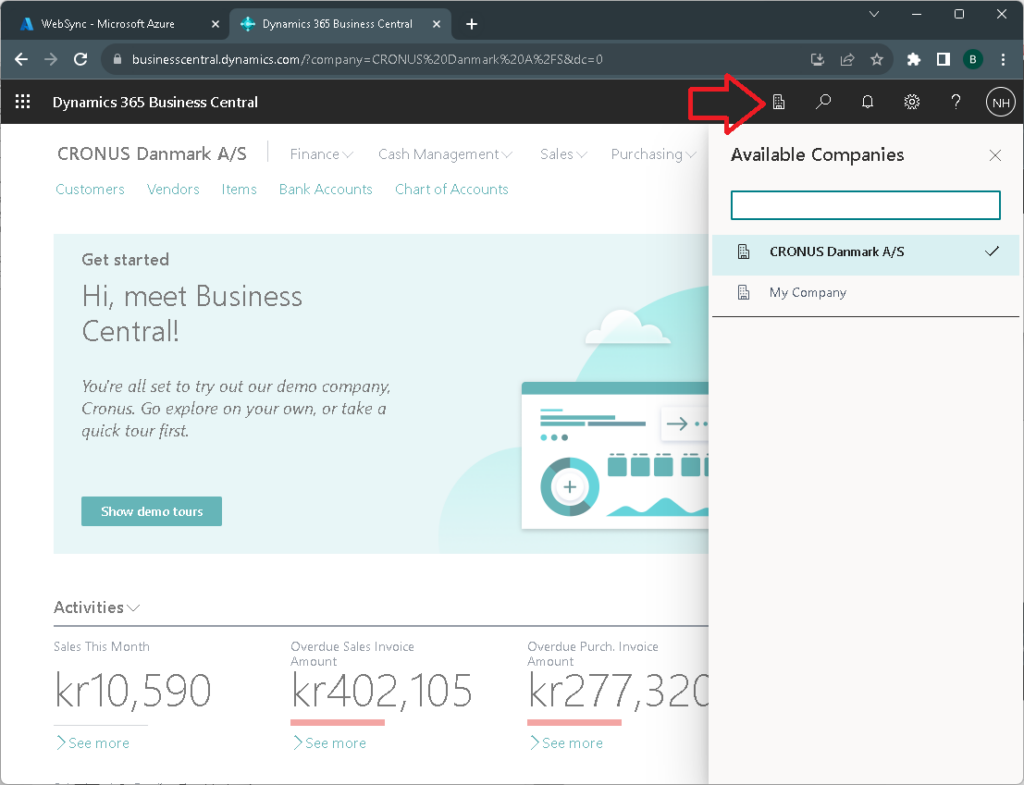
Click the “office building” icon in the top band to see Available companies
Write down the exact company name(s) you need from this list, so it can be entered into the WebSync connection later
Get environment name(s):
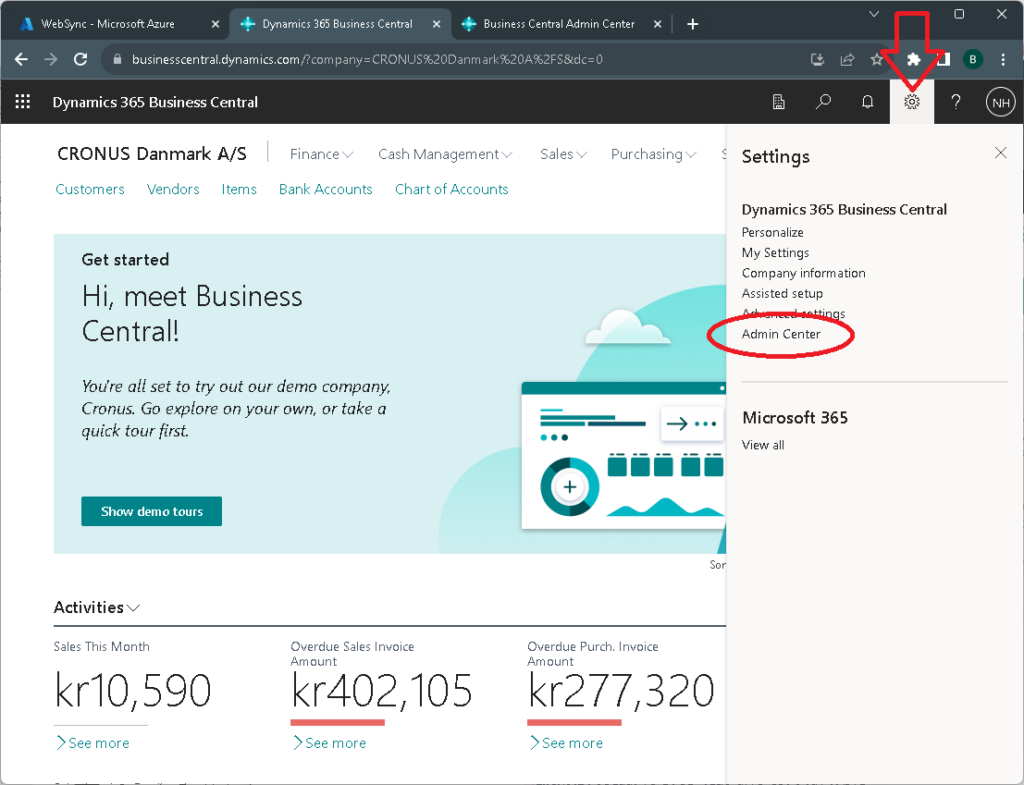
Go to Admin Center in the Settings menu (gear icon) as shown below
Select the “Admin Center” menu item. The Admin Center will open in the new window.
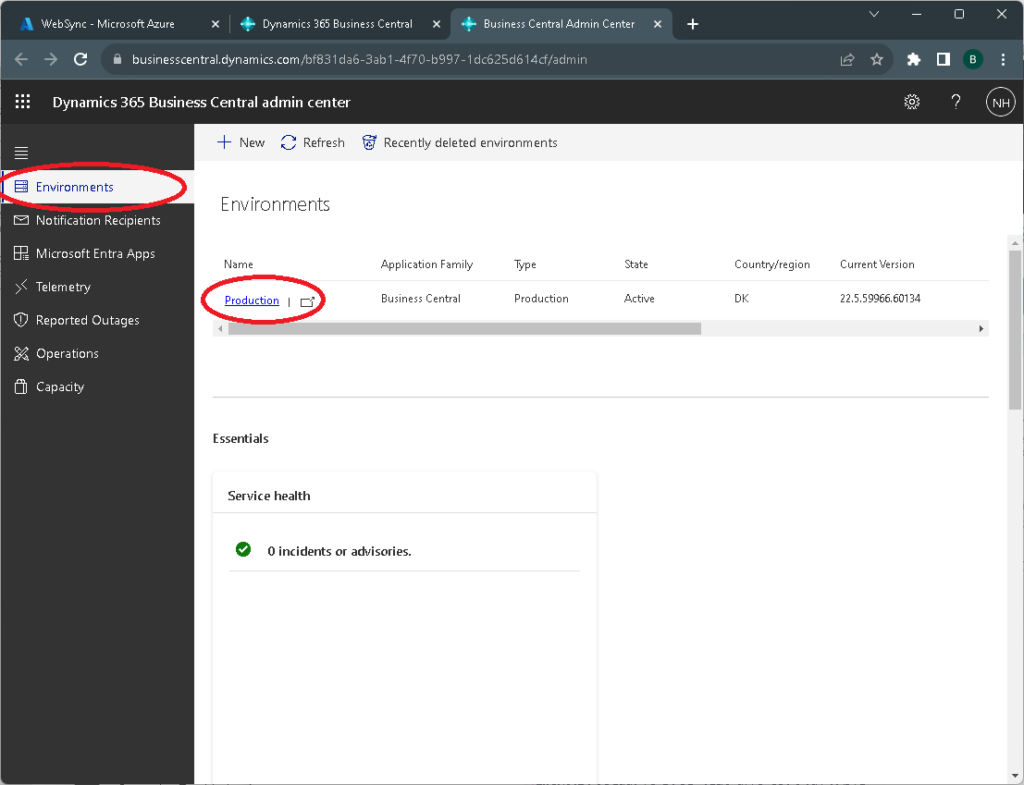
Select “Environments” in the left side
See list of defined environments in the list
Write down the name(s) of the environment(s) you need to retrieve data from, so it can be entered into the Business Central connection in WebSync
By default it is “production” (or something similar in your language), but it can have any name. Your company may have multiple environments, e.g. for testing purposes that may also be relevant to retrieve data from, for example prior to going into production on a new BC system.
This completes the Business Central API part of the setup!
Next, this information should be entered into a connection in WebSync, so if this is not your role you should pass on the below information to the person responsible for configuring WebSync:
You need tenant ID, environment name, client ID, client secret, company name.